


THINKWARE DASH CAM LINK
3.3262.00 Reviews
App Specs
- Version
- 1.5.21
- Updated On
- License
- Free
- Downloads
- 500,000+
- Developer
- THINKWARE
- Categories
- Auto & Vehicles
- Platform
- Android
Screenshots
 Analysis by AppCompare
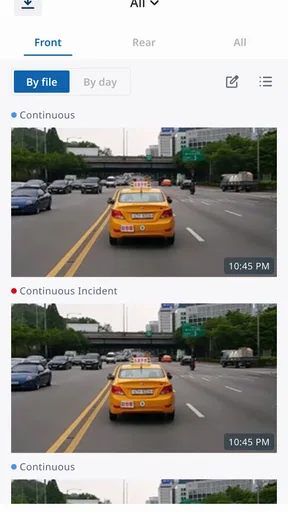
When I use a dash cam, I do not want a complicated second dashboard competing with the road. I want a dependable way to check what the camera sees, review a clip after an incident, and save useful footage without turning a simple errand into a technical project. THINKWARE DASH CAM LINK is built around that practical job. It is a free Auto & Vehicles app from THINKWARE for viewing live images and recorded videos from a compatible THINKWARE dash cam.
That focused purpose is both its strength and its limitation. This is not a general driving assistant, a navigation replacement, or a social video editor. I see it as a companion screen for the dash cam itself. Once the connection is working, the app gives me a more convenient way to inspect the camera feed and recordings than trying to judge everything from the camera hardware alone. For owners of supported THINKWARE equipment, that can make everyday use much less awkward.
The app is available for Everyone and can run on Android 9 or later. It has reached over 500 thousand installs, with an average rating of 3.3 from around 1.6 thousand ratings, so the overall picture is mixed rather than universally glowing. I would not treat that score as a reason to dismiss it, but I would take it as a reminder that the quality of the experience depends heavily on the dash cam, the phone, and the connection between them.
Using the app as part of a repeatable dash cam routine
I find the app most useful when I treat it as one small, repeatable part of looking after the dash cam, rather than something to open only when there is a problem. Checking the view after a mount or windshield change and noting the time of an unusual event both make later review more deliberate. That routine also helps me spot when the next step belongs outside the app.
The basic workflow I would recommend
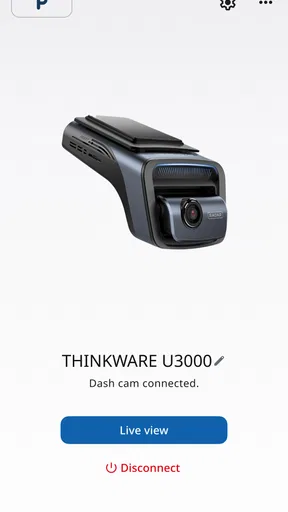
My preferred routine starts before I need a recording. I open the app while the vehicle is safely parked, connect it to the THINKWARE dash cam, and check the live image. This is a small habit, but it catches practical problems early: the camera may have shifted, the view may be partly blocked, or the phone may still be connected to another wireless device. A quick live check is more useful than discovering a bad angle after a long drive.
The live view is most valuable as a setup and verification tool. I can use it to confirm that the road occupies the right part of the frame and that the camera is not pointing too high or too low. I would not use it while driving, and I would avoid treating the phone as an extra screen in motion. The app is at its best when the car is stationary and I am preparing the system or checking it afterward.
After a journey, I use the recorded-video area with a specific question in mind. If I am looking for footage from a particular moment, I first narrow the search by approximate time rather than casually scrolling through everything. That sounds obvious, but it prevents a common mistake: opening clips randomly, losing track of what has already been checked, and then assuming the recording is missing.
Worth Reading Before You Choose

Flipboard Shows What News Apps Must Do Beyond the Feed

Switching to Android Auto Means Rethinking Your Driving Routine

Google Calendar Makes a Crowded Week Easier to Manage

Ludo King Makes the Most of the Minutes Between Plans

Baby Panda World Brings Quick Play to Modern Phones, but Its Game Library Feels Busy

ESPN’s Live Game View Makes Following Close Games Easier
A useful habit is to review the clip on the phone before deciding what to do with it. The live feed answers “what is the camera seeing now?” while a recording answers “what did it capture then?” Keeping those jobs separate makes the app easier to manage. I also make a note of the event time immediately after something important happens, because memory becomes less reliable once a drive contains several stops or similar road situations.
Why the phone connection matters so much
Unlike a standalone video player, this app depends on a relationship with the dash cam. That means the first few minutes of use can feel less direct than opening a normal gallery. The phone must communicate with the camera, and the experience can be affected by whether the connection has been established cleanly. If the app seems unresponsive, I would check the vehicle is parked, close unrelated connection screens, and reconnect rather than repeatedly tapping the same control.
I would also avoid starting a review session with a nearly full phone or a distracted multitasking setup. Looking through dash cam footage is already a task that benefits from concentration. Keeping the app as the main screen, waiting for the recording list to load, and checking one clip at a time gives a clearer result than switching constantly between apps.
This is one of the less obvious trade-offs of a manufacturer companion app. The dedicated connection can provide a direct route to the camera’s footage, but it is not as universally flexible as simply removing a memory card and reading it with any compatible computer or file manager. If I need to examine a large archive, compare many files, or perform detailed editing, I would rather move to a larger screen. For a quick inspection at the roadside, the phone is more convenient.
Settings I would check before trusting the setup
THINKWARE DASH CAM LINK is mainly for live images and recordings, so the most important “settings work” happens around the camera and the viewing process rather than in decorative app customization. Before relying on it, I would verify that the connected camera is the intended device and that the live image corresponds to the vehicle I am sitting in. This matters especially for anyone who owns more than one THINKWARE dash cam or regularly uses a shared vehicle.
I would then check the camera position through the live view from the same parked location where I normally start a trip. A view that looks acceptable in a driveway can become less useful when the vehicle is loaded with passengers, parked on a slope, or facing a different direction. I cannot expect the app to correct a physical mounting problem; it can only show me what the camera is seeing.
Another worthwhile check is the phone’s own connection behavior. If the phone keeps trying to prioritize a different wireless connection, the dash cam session may feel inconsistent. Rather than assuming the app is broken, I would simplify the environment: stop unnecessary connection attempts, bring the phone close enough for a stable session, and reconnect while stationary. That is a practical troubleshooting habit, not a hidden feature, but it makes a noticeable difference to companion-app use.
I would also decide in advance what I consider an important recording. A clip involving a collision, a near miss, unusual road behavior, or damage should be reviewed promptly. Waiting until the end of a busy week makes it harder to identify the right moment and easier to overlook something. The app is more useful when it is part of a repeatable review habit rather than an emergency tool opened only after frustration begins.
Faster patterns for everyday use
The quickest pattern I found is a three-stage loop: confirm the live image before departure, remember the approximate time of any important event, and review the relevant recording while parked. This reduces unnecessary browsing and helps me decide quickly whether the footage is worth preserving through whatever storage workflow I normally use.
For a routine commute, I would not open the app every time. That would turn a useful tool into a chore. Instead, I would check the live view after the camera has been moved, after cleaning the windshield, or whenever the vehicle has been serviced. On ordinary days, I would only open the app when I have a reason to inspect a recording. This balance keeps the app available without making it part of every minute of driving.
For a shared car, I would make the handover routine explicit. The next driver should know that the app is intended for use while parked and that the live display is a check, not a replacement for attention on the road. A short demonstration of how to connect and locate a recording can prevent someone from searching through clips while stopped in an unsafe place.
For a minor road incident, I would pull over somewhere legal and safe before opening the app. Then I would use the live image only if I need to confirm the camera’s current position, and move quickly to recorded video for the event itself. This avoids spending time on the wrong screen. If the footage is unclear, I would note that immediately instead of repeatedly replaying the same section without a plan.
One of the most useful advanced habits is to separate evidence review from evidence interpretation. First, I check whether the recording contains the relevant moment. Next, I watch enough context before and after it to understand what happened. Only then do I decide whether I need to share or preserve it. This prevents a short, dramatic fragment from being mistaken for the complete sequence.
Where the app is genuinely convenient
The strongest use case is an owner who wants a simple mobile window into a compatible THINKWARE dash cam. The app avoids making me rely entirely on the camera’s built-in display, if one is present, and it is easier to inspect a scene on a phone than to lean toward a small device mounted near the windshield. For checking alignment, confirming a recording, or reviewing a recent drive, that convenience is meaningful.
It is also useful when I am helping someone else understand their dash cam. A live image gives an immediate explanation of what the camera captures, which is clearer than describing the viewing angle verbally. That can be helpful after a windscreen replacement, a mount adjustment, or a change in the vehicle’s seating position.
The free price lowers the barrier for existing THINKWARE owners. I do not have to add a separate purchase simply to access the companion experience, and the Everyone content rating makes it suitable for ordinary household use. The app’s current version is 1.5.21, so I would keep it updated through the normal app-store process when an update is available, especially if connection behavior changes after a phone or operating-system update.
Still, “free” does not mean it replaces every other tool. A phone gallery, a file manager, or a computer may be better for organizing a large collection of recordings. A video editor is better for trimming and annotating clips. A navigation app is better for directions. THINKWARE DASH CAM LINK earns its place by connecting the viewing task to the dash cam, not by trying to cover all of those jobs.
The limits experienced users should understand
The app cannot remove the physical and technical limits of the dash cam. If the lens is dirty, the mount is loose, glare is strong, or the camera’s view is blocked, the live image will faithfully show a compromised picture. I would not mistake a clean-looking app interface for proof that the recording itself is usable.
Connection friction is another realistic concern. A companion app can feel excellent when the phone and camera pair quickly, then frustrating when they do not. I would judge it by the full workflow rather than by the first failed attempt: park safely, simplify the phone’s connections, reconnect, and check the live view before searching for recordings. If that process remains unreliable on my particular setup, the app becomes less attractive even though its purpose is clear.
The rating of 3.3 suggests that other users have encountered enough inconvenience to keep expectations measured. I would not infer that every owner will have the same experience, because phones, dash cam models, and driving routines vary. But I would approach installation with patience and test it before an important trip, rather than waiting for an incident to become the first serious trial.
There is also a privacy and attention trade-off in using any phone-based camera companion. I would avoid reviewing footage in public places where other people can see sensitive scenes, and I would never operate the app while the vehicle is moving. The right workflow is deliberately boring: stop, connect, review, and leave the phone alone when driving resumes.
Who should use it, and who should choose another workflow?
I would recommend it first to THINKWARE dash cam owners who regularly want to verify the camera angle or inspect recent recordings without removing storage from the vehicle. It suits drivers who prefer a phone-based check and are willing to spend a few minutes learning the connection routine. It is especially practical for people who want a quick answer after a parking scrape, a sudden braking event, or a confusing moment on the road.
I would be less enthusiastic for someone shopping for a dash cam ecosystem purely because of the companion app. The app’s role is tied to THINKWARE hardware, so it is not a universal viewer for unrelated cameras. If the main priority is managing recordings from several brands, editing long videos, or maintaining a searchable archive, a computer-based workflow may be a better foundation.
I would also skip it as a daily driving display. The app is not a substitute for safe attention, and opening it before every trip is unnecessary unless the camera has been moved or needs checking. Drivers who want live navigation, traffic information, or hands-free assistance should use tools designed for those purposes instead of expecting this app to become a broader driving platform.
My verdict after building a habit around it
The best way to use THINKWARE DASH CAM LINK is as a calm, parked-car inspection tool. Its value appears when I combine it with simple habits: check the live image after physical changes, remember event times, review recordings promptly, and move to a larger-screen workflow when the task becomes archival or editorial.
I like the focused design because it does not pretend to be more than a dash cam companion. Live viewing and recorded-video access cover the two moments that matter most to an owner: confirming what the camera sees and checking what it captured. The free availability and broad Everyone rating also make it easy to try for people already using compatible THINKWARE equipment.
My reservations are equally practical. The experience depends on a clean connection, a correctly mounted camera, and a user who is willing to review footage safely while parked. It is not the right answer for navigation, advanced video management, or a mixed-brand camera collection. The middling 3.3 average is a fair reason to test the complete workflow before relying on it for an important journey.
After that test, the decision is straightforward. If the app connects reliably to your THINKWARE dash cam and you mainly need quick live checks and recent recordings, I think it is worth keeping installed. If your needs extend beyond that narrow but useful job, pair it with a computer or another purpose-built tool rather than forcing it to handle work it was never meant to do.
Pros
- Live video preview helps position the dash cam accurately.
- Recorded clips can be reviewed without removing the memory card.
- Wireless transfer makes saving important footage more convenient.
- Useful driving data may be displayed alongside compatible recordings.
- The interface is straightforward for basic camera management.
Cons
- Wi-Fi connection can interrupt your phone’s normal internet access.
- Transfer speeds may feel slow with long
- high-resolution recordings.
- Some features depend on having a compatible THINKWARE dash cam.
- Background use can drain the phone battery during extended sessions.
- App performance may vary between different phone and camera models.
FAQs for THINKWARE DASH CAM LINK
What is THINKWARE DASH CAM LINK used for?
THINKWARE DASH CAM LINK is the companion mobile app for compatible THINKWARE dash cameras. After connecting your phone to the camera’s Wi-Fi network, you can preview the live recording, browse saved videos and photos, download important files, and adjust supported camera settings. It is particularly useful when you need to review footage at the scene of an incident without removing the memory card.
How do I connect THINKWARE DASH CAM LINK to my dash camera?
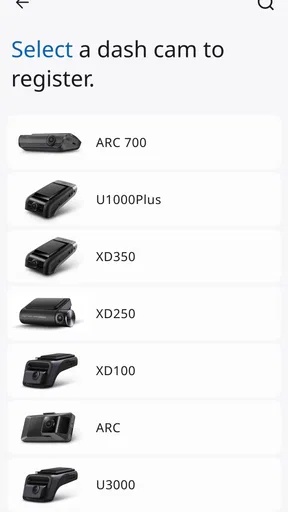
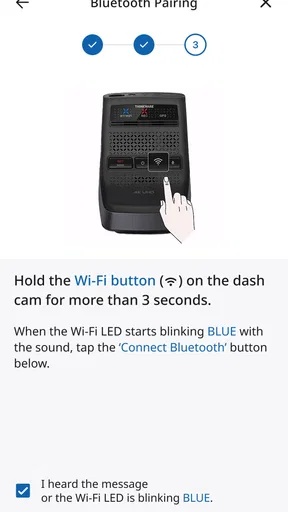
To connect, turn on your compatible THINKWARE dash camera and enable its Wi-Fi or mobile connection feature. Open the app, follow the pairing instructions, and connect your smartphone to the dash cam’s dedicated Wi-Fi network when requested. Because the phone may temporarily disconnect from mobile data, some online services can be unavailable while connected. Compatibility and setup steps may vary by camera model.
Can I download and share dash cam videos with the app?
Yes, the app generally allows you to browse recordings stored on the dash camera and transfer selected videos or images to your smartphone. Once downloaded, files can usually be viewed in the phone’s gallery and shared through messaging apps, email, or social networks. Large, high-resolution clips may take time to transfer, so keeping the phone near the camera and maintaining sufficient storage is recommended.
Which THINKWARE dash cameras are compatible with THINKWARE DASH CAM LINK?
Compatibility depends on the specific THINKWARE dash camera, firmware version, and sometimes the region in which the product is sold. The app is designed for supported THINKWARE models with wireless connectivity, but not every camera or feature works with every phone. Before downloading, check the app listing and THINKWARE’s official compatibility information using your exact camera model and smartphone operating system.
Does THINKWARE DASH CAM LINK require an internet connection or subscription?
The basic connection between the app and a compatible dash camera normally uses the camera’s own Wi-Fi network, so an internet connection is not always required for viewing or downloading local recordings. However, internet access may be needed for app updates, cloud-related services, or other online functions if supported by your equipment. The app itself does not replace a memory card or guarantee cloud backup.


